Monday, 23 June 2014

How To Disable "Send To" Option in Windows ??

When you right-click any object on a Windows system, there is the option Send to which is able to literally send objects to other computers by automatically opening a new mail and attaching the chosen file as attachment, process them with other programs selectable from a list, or just moving the file to a different location (hold the Shift key when right-clicking to enable more options to Send to). The common user however does not use this function really often, in fact, he may also find it annoying since it might cause short freezes on slower computers if one accidently hovers the mouse over it and thus makes it load a list of applications. But as for every other problem on your computer there is also a solution for this one, disabling the Send to command with the registry.

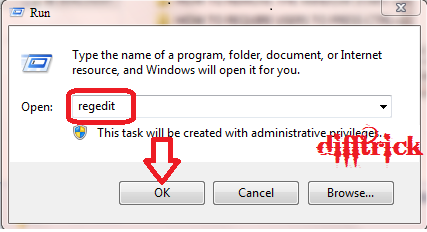
STEP 1: Click on Start Menu and open run command and type regedit. (WINDOWS + R)


STEP 2: Browse the following registry key:
HKEY_CLASSES_ROOT\ALLFIlesystemObjects\shellex\ContextMenuHandlers\SendTo


STEP 3: In the right click pane you will see a Default String Value Double click on it and remove its data completely. This will immediately disable the SEND TO option.


STEP 4: You can enable the SEND TO option by changing the data of the above Default string value to {7BA4C740-9E81-11CF-99D3-00AA004AE837}.

That’s you have Enable your SEND TO option.

Keep Visiting Difftrick for More Windows Hacks and Tricks.

How To Disable The AERO Shake Feature in Windows 7 ??

Windows 7 comes with new features known as the Aero Shake features which allow a user to click on the title bar of a window and move the mouse back and forth to minimize all other windows automatically. 
I have personally never found this feature useful and it is actually possible to disable it by simply following the below registry tweak:

Follow the Below Steps:

STEP 1: Click on Start Menu and open run command and type regedit. (WINDOWS + R)


STEP 2: Browse the Windows registry key:
HKEY_CURRENT_USER\Software\Policies\Microsoft\Windows

STEP 3: Right click on the windows key and create a new subkey and call it Explorer.


STEP 4: Once you have selected Explorer, then on the right hand side pane create a new DWORD value called "NoWindowMinimizingShortcuts" and set its value to 1. 


This should disable the Aero Shake feature.

Delete the changes for Enable it...

Keep Visiting Difftrick for More Windows Hacks and Tricks.

How To Add an Application to the Right Click Menu of the Desktop in Windows 7 ??

Normally, whenever you right click on the desktop then you get the standard options like View, Sort By, New and others. However, sometimes it makes a lot of sense to create a shortcut to an application by adding that application to the right menu of the desktop. Think of it’s as an additional way to quickly access your most frequently used application. 
This can easily be done by implementing the Registry trick below:

STEP 1: Click on Start Menu and open run command and type regedit. (WINDOWS + R)


STEP 2: Browse the following Registry Keys:
HKEY_CLASSES_ROOT\Directory\Background\shell


STEP 3: Right click on the shell key in the left pane and create a new key and name it whatever you want to display in the right click menu. I am going to add paint to the right click menu so I will create a new key with the name paint.


STEP 4: Now right click on paint and create another key called Command.


STEP 5: On the right hand side pane, double click on the (Default) String value and in its field, enter the path name of the application you would like to start when somebody clicks on the paint context menu option. In this case, I am going to go ahead and type the path name "C:\Windows\System32\mspaint.exe"


STEP 6: Now when I right click on my desktop, a new menu item called paint has been added to the context menu.


STEP 7: When I click on the Paint option, then obviously Microsoft Paint will start on My Computer.


STEP 8: To remove PAINT from the Right click desktop menu, all you need do is simply delete the new keys that you created. 

As simple as that!

Thank You !!!! And Keep Visiting Difftrick for More Windows Hacks and Tricks.

How To Disable Access to the Windows Registry ??

It is very useful for system administrator to be able to put a restriction on the editing of the Windows Registry for security reasons. This can be done with the help of the following simple registry tweak:

STEP 1: Click on Start Menu and open run command and type regedit. (or Press WINDOWS + R)


STEP 2: Browse the following Registry key:
HKEY_CURRENT_USER\Software\Microsoft\Windows\CurrentVersion\Policies\System


STEP 3:  Create a new DWORD value, DisableRegistryTools and set its data value to 1 to disable registry editing and to 0 to enable it again.


Thank You !!!! And Keep Visiting Difftrick for More Windows Hacks and Tricks.

How To Disable Windows HotKeys ??

Hello. Friend today’s me come with new and amazing Windows tricks. Some person are not use Hot keys , and it disable it. It is possible to prevent users from using the Windows shortcut hot keys—like ALT+TAB and others—by simply following the steps given below.

Follow The Below Steps:

STEP 1: Click on Start Menu and open run command and type regedit. (WINDOWS + R)


STEP 2: Browse the following Windows Registry:
HKEY_LOCAL_MACHINE\Software\Micorsoft\Windows\CurrentVersion\Policies\Explorer


STEP 3: In the right pane, create a new DWORD value named NoWinKeys.


STEP 4: And set its data value to 1 disable the windows hotkeys, and to 0 to enable them.


STEP 5: Exit the Windows registry and restart the windows session for the change to be applied.

Thank You !!!! And Keep Visiting Difftrick for More Windows Hacks and Tricks.

Sunday, 22 June 2014

Convert Your Personal Facebook Account Profile into Bussiness/Fan Page

Hi..Friend’s I am come with new another amazing Facebook trick. How to Convert Personal Profile to Fane page.I am discuss still using a personal Facebook profile to promote your business? First, let me back up and explain.


Did you know that if you've been using a Facebook profile (timeline) for your organization, Facebook could shut down your profile and revoke access to your content? It's true.
In fact, it's a direct violation of their rules. According to Facebook, "profiles (timelines) must represent an individual. Users aren't permitted to maintain an account under the name of their organization, or use personal accounts to advertise or promote themselves professionally." The good news is that Pages have better features for your organization, such as insights, the ability to add mutiple administrators, and there are no limits to the number of people who can "Like" your Page. So if you need to convert your Facebook profile to a Page here’s how you do it.

Important Rule for Convert Personal  Facebook Account Profile Business/Fan Page.

1. Download your profile information.

2.Make a new admin to your  groups or Pages you manage.

3. Change your profile name and address, if necessary.

4. Convert your personal Facebook Profile to a business Page.

5. Merge your new Facebook business Page with any existing Page, if you  have one.

Follow the few simple Step:

STEP 1: To begin the migration make sure you’re logged into your Facebook account then go here.


STEP 2: Now,  select your page category like business, brand community.


STEP 3: Then Selecting Category , when ask to migration process to enter your facebook password.

@After completing all critical area to see this type of image.


For More Facebook Tricks. Keep Visiting Difftrick.

Thursday, 12 June 2014

How To Invite All Your Facebook Friends on Page in Single Click 2014 ??

Hello Friends, Today I give you latest trick for How to invite all Facebook friends on page by one Click 2014, Every one know that fan page is very important for your business sites, Brand community or many more, Using this you can promote your product via this, Means If you had a product and you wanna promote this via social site than you must create a Facebook fan page. And i wanna also tell you every page's popularity showing there Likes, so every one wanna more likes for this.


If you try to invite your friends without this method, Than you are time wasting, because one by one its take so longer time. But using this trick you can get fast Facebook like or easily invite your all friends by one click with so fast. We was also share with you a method for this but that is not working. So we are sharing with you latest brand new method, Its full working on Google Chrome & Mozilla Firefox browser.

Now to add Friends in Just one Click follow this Simple Steps:

Steps to invite all friends to Facebook Page.

Step 1: Login to Facebook.

Step 2: Open your Page from your account.

Step 3: Click on Build Audience and Select Invite Friends from the drop-down menu.


Step 4: Open all your Friends by scrolling Down until names stop loading.


Step 5: Now Press Ctrl+Shift+J or F12.

Step 6: Now Click on Console.


Step 7: Now Just Copy Below Code (without Quotes).


"var inputs = document.getElementsByClassName('uiButton _1sm'); for(var i=0; i<inputs.length;i++) { inputs[i].click(); }"


Step 8: Paste the Code using Ctrl+V into Console and Press Enter.


Step 9: Wait for few seconds, You will see all your friends are invited.


This Code Work in Both Google Chrome And Mozilla Firefox.

For More Facebook Tricks. Keep Visiting Difftrick.